> ## Documentation Index
> Fetch the complete documentation index at: https://moengage-gr001-partner-ingestion-limits.mintlify.site/llms.txt
> Use this file to discover all available pages before exploring further.
# Manage Predictions
> Manage your MoEngage predictions by reviewing instance details, checking propensity buckets, and creating targeted campaigns from prediction data.
# Prediction Details
The prediction detail page shows prediction details such as ID, Type, Created Time, and Last Run Time.
You can click on **Prediction Details for instance** and choose the particular instance to display the details.
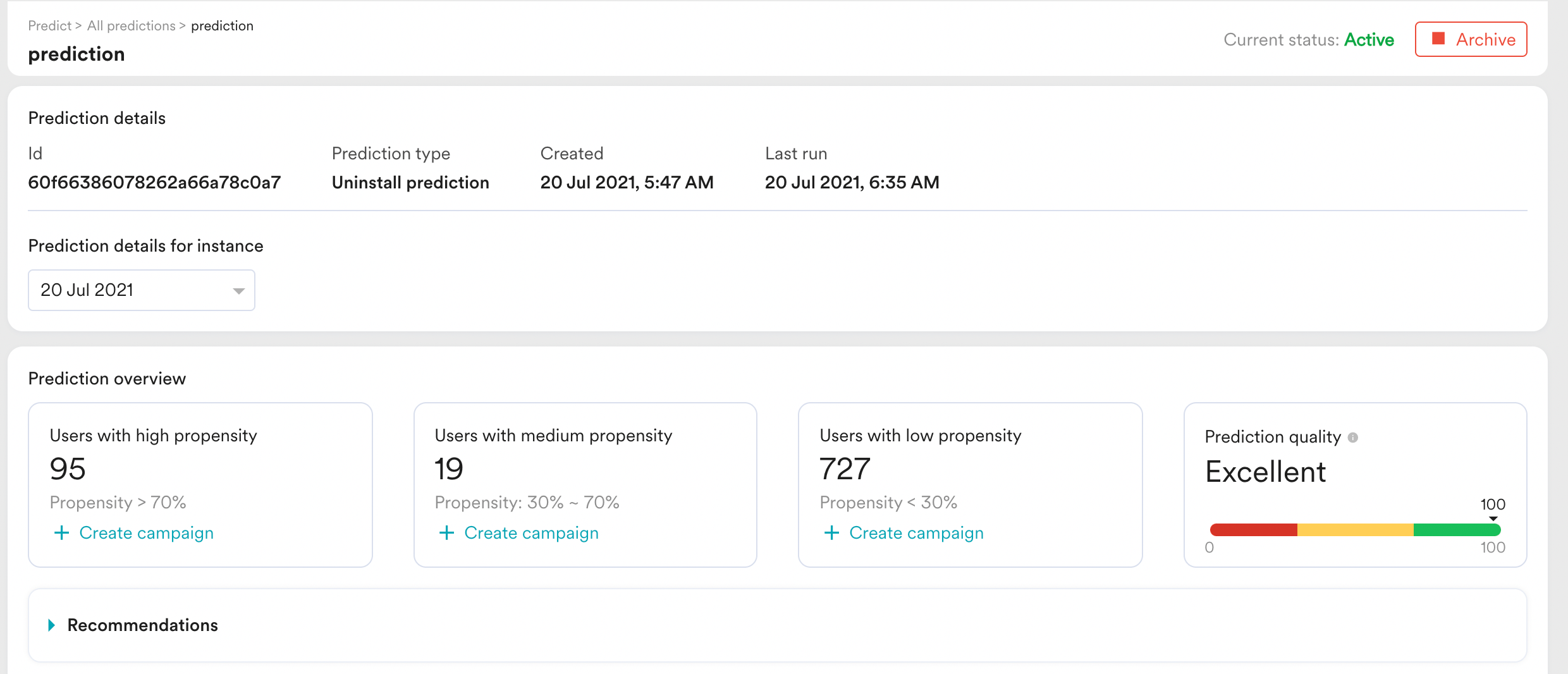 Prediction overview provides the count of users present in different propensity buckets along with Prediction quality.
You can click on **Recommendation** to view the recommended actions for the respective prediction.
# Create Campaign using Prediction
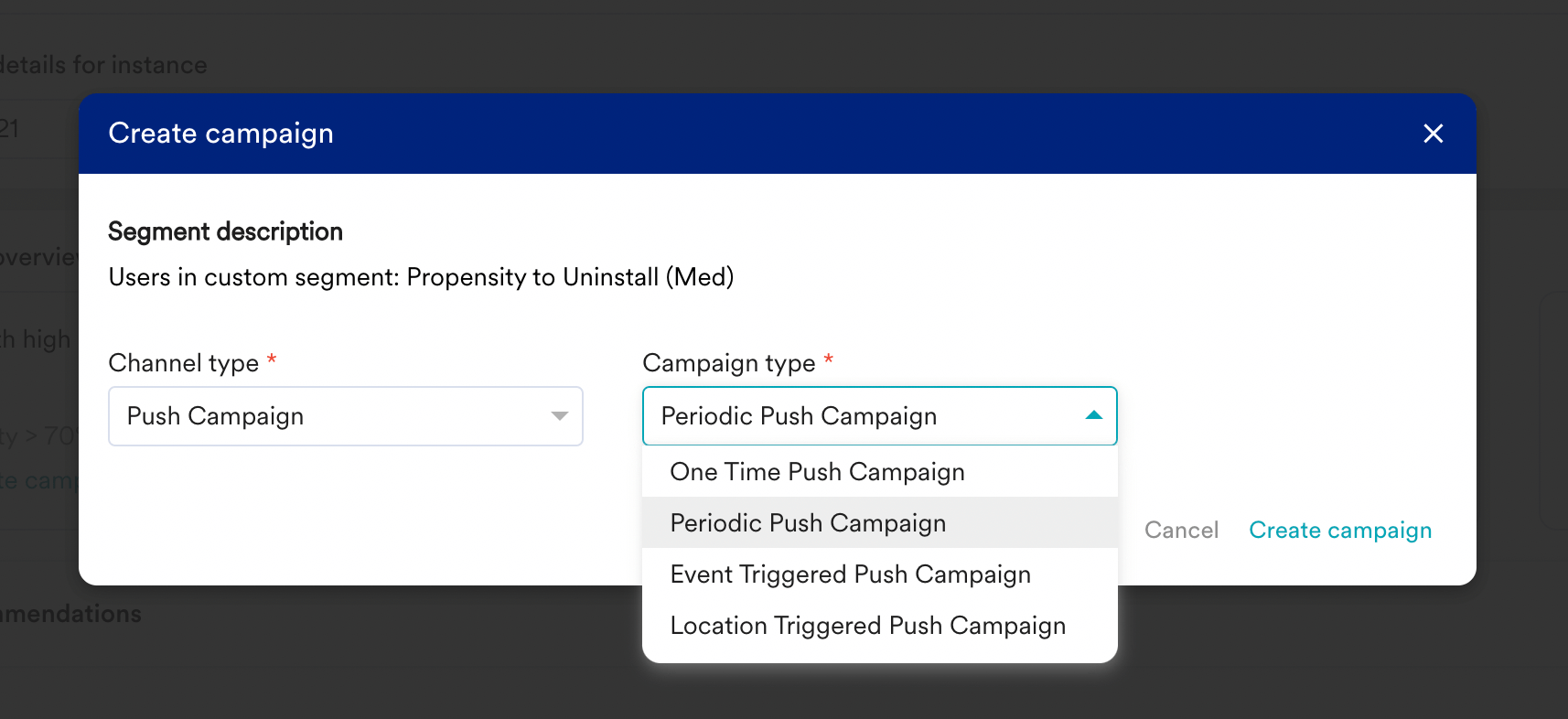
You can create a campaign with the respective propensity bucket, just click on the **+Create campaign** button and chose the channel and campaign type to create a campaign from the prediction.
Prediction overview provides the count of users present in different propensity buckets along with Prediction quality.
You can click on **Recommendation** to view the recommended actions for the respective prediction.
# Create Campaign using Prediction
You can create a campaign with the respective propensity bucket, just click on the **+Create campaign** button and chose the channel and campaign type to create a campaign from the prediction.